Instagram data download not working? Find your symptom and the fix
The file is usually waiting in Accounts Center under Available downloads, ready files last 4 days, and a wrong-looking ZIP is a settings problem. Find your symptom in the table and jump to the fix.
By FindUnfollower · · 10 min read
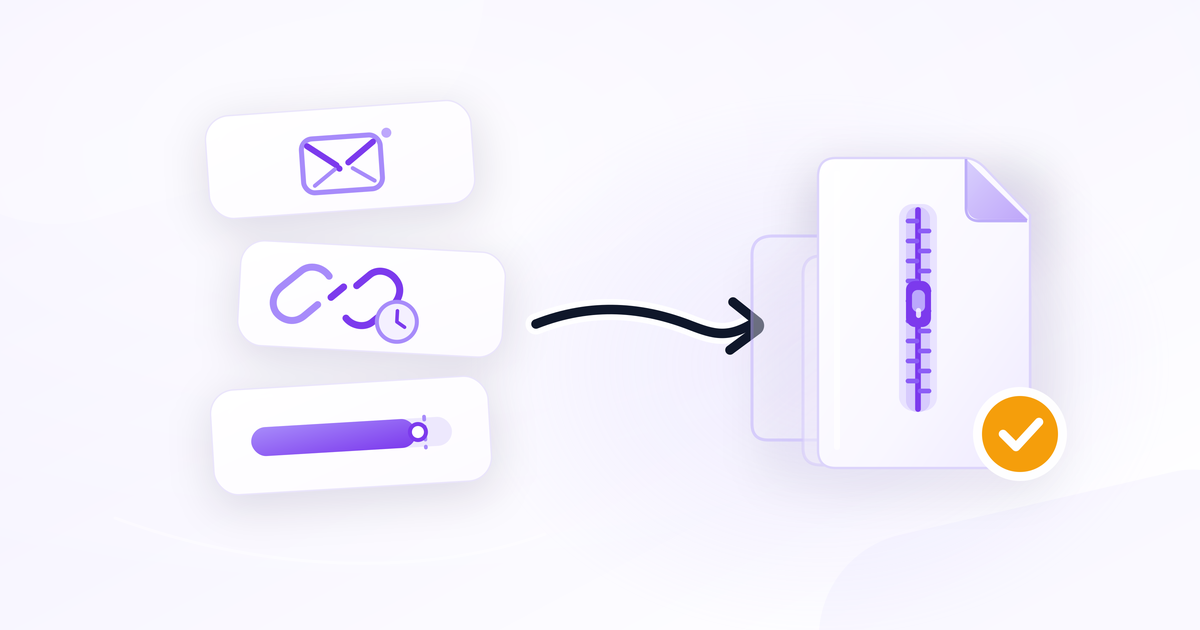
Most of the time, "my Instagram data download isn't working" comes down to one of three things. The finished file is waiting in Accounts Center under Available downloads even when no email arrived. A ready file can only be downloaded for 4 days, after which the only fix is a new request. And when the ZIP arrives but looks wrong, the request settings were off, usually the date range or the profile. Find what you are seeing in the table, then jump to the fix.
Find your symptom
| What you see | Likely cause | What to do |
|---|---|---|
| No "Download your information" entry in Settings | The feature moved and was renamed | Open it from Accounts Center |
| Request shows "pending" or "in progress" for days | A large export, or Instagram's queue | Wait, check Past requests, shrink the export |
| No email | The file is ready and the email is slow, filtered or sent to another address | Download it from Available downloads |
| "Link expired" or the email link does nothing | More than 4 days passed since it was ready | Request it again |
| Download stops, or the ZIP will not open | Storage, a phone browser, or an unzipped copy | Download on a computer, keep the ZIP as is |
| ZIP arrives but followers are missing or far too few | Wrong profile, category not ticked, or "Last year" | Check the file, re-request with All time |
You can't find the export option, or the button does nothing
Instagram renamed and moved the feature. What older guides and Reddit threads call "Settings → Security → Download data" now lives in Accounts Center. The entry is called Export your information; some accounts still see "Download your information". The path on the current app is: profile → menu (three lines) → Accounts Center → Your information and permissions → Export your information → Create export. On a computer, Instagram's own deep link opens the same screen directly: https://accountscenter.instagram.com/info_and_permissions/dyi/.
Two things stop the button from working at all, and Instagram says so in its Help Center. A profile that is deactivated cannot export until you reactivate it, and a profile scheduled for deletion cannot export until you cancel the deletion. If Accounts Center lists several profiles (Facebook, Threads, a second Instagram account), pick the Instagram profile you want. An export for the wrong profile completes without any error and contains the wrong followers.
If the screen is blank or the button does nothing on a phone, the usual fix is boring. Update the app, or make the request from Instagram on the web, where the Accounts Center pages load in a normal browser.
The request has been "pending" for days
Instagram's official line is that it "may take up to 30 days" to email you a link. In practice the time depends on what you asked for. A full archive with every photo, video and message can take days. An export of only Followers and following is a few hundred kilobytes and is usually ready within minutes, occasionally within 48 hours.
While it is pending:
- Do not create the same request again; you only end up with several near-identical files to tell apart. Past requests on the Export your information screen lists the requests you have already made.
- If you requested everything, let it finish, but next time use Customise information and tick only Followers and following. Our step-by-step export guide shows that screen.
- Check back on the Export your information screen itself rather than waiting for the email. When it is done, the file appears under Available downloads.
The email never arrived
The email is a courtesy. The file lives in your account. Open Accounts Center → Your information and permissions → Export your information and look under Available downloads. If the request is finished, you can download it right there, on any device, without the email.
If you want the email anyway, three checks solve nearly every case. The notification address is chosen on the export screen when you create the request, so confirm which address you picked. Look in Spam and in Gmail's Promotions tab, where automated Meta mail can land. And remember the in-app notification: Instagram also tells you inside the app when the file is ready.
If Available downloads is empty and Past requests shows nothing, the request was never submitted. Start again and make sure you get past the password prompt to "Start export".
The link says it expired or does not work
Once a file is ready, Instagram keeps it for 4 days in Available downloads. After that it is no longer available there, and the email link stops working. There is no way to extend or recover an expired export. Request it again; a followers-only export is normally back within minutes, so the cost is small.
Two related situations look like an expired link but are not:
- The email link opens Instagram but nothing downloads. This has been reported on and off for years. The workaround is the same every time: ignore the email and download from Available downloads inside the app or on the web.
- You requested on your phone and want the file on a computer. The email works on any device. Open it on the computer, sign in, and download there. The ZIP then sits in your Downloads folder instead of a phone's Files app.
If you are worried that someone else has the link: the download requires signing in to your Instagram account. Instagram describes the export as a password-protected process that only you can access. Change your password if in doubt and request a fresh export.
The ZIP won't download or won't open
A download that stops at a few bytes, or a file that the phone cannot open, is almost always one of these:
- Not enough storage. Instagram's Help Center says so explicitly: large exports need free space on the device. Free some, or request a smaller export (Followers and following only).
- A phone browser choked on a big archive. Download on a computer, or next time choose Export to external service and send a large archive to Google Drive or Dropbox. FindUnfollower reads the Google-Drive-wrapped ZIP as it comes.
- The file was unzipped, renamed or edited. Keep the ZIP exactly as Instagram sent it. You never need to open it. If you did unzip it, upload the original ZIP, not the folder.
- The download was interrupted. If FindUnfollower answers "The file looks damaged. Please download your Instagram export again and upload the new file", that is what happened. Download it again from Available downloads.
On an iPhone the ZIP lands in the Files app under Downloads (or iCloud Drive → Downloads); on Android and on computers it goes to the Downloads folder.
It downloaded, but the followers are missing or wrong
This is the branch where a working download still fails the person who wanted it. The export is a ZIP; everything about followers is in one folder, connections/followers_and_following/, as followers_1.json (plus followers_2, followers_3 on larger accounts) and following.json, or the same names ending in .html. Before re-requesting anything, drop the ZIP into the free ZIP analyzer. It runs in your browser, lists which follower files it found, counts the accounts in each, and warns about the problems below. Nothing is uploaded.
No followers folder at all. "Followers and following" was not ticked under Connections, or the export was made for another profile in Accounts Center. Request it again with the right profile and only that category ticked; the download guide has the screenshot.
The files are HTML, not JSON. That is fine. Several tools insist on JSON and tell you to re-export. FindUnfollower reads either format, and the HTML version even records the date range in its header, which helps with the next problem. Pick whichever you already have.
Far fewer followers than your profile shows, while the following list looks complete. The date range was left on Last year. Instagram then keeps only the people who followed you inside that window, while your following list stays complete, so hundreds of long-time followers look like they are gone. You can see it yourself. An HTML export says "Contains data … from [date] to [date]" in its header, with a one-year span. A JSON export has no header, so compare the two lists: the oldest follower is only about a year old while the oldest account you follow goes back a year or more further. FindUnfollower runs the same checks when it reads the file: the header dates against the oldest follow timestamp for HTML, the followers-versus-following comparison for JSON. If either fires, it shows a warning before any numbers. The fix is a new request with the date range set to All time; why the date range must be All time explains what happens otherwise.
Illustrative example: an account with 1,900 followers and 1,100 following, exported with "Last year", might show a followers file of 240 accounts. Compared against a complete following list, that reads as roughly 900 people "not following back" when the real number is a few dozen. The same account with "All time" shows all 1,900 and the right answer.
The followers are split across followers_1, followers_2 and more. Large accounts get several files. They are parts of one list, not different periods, and are meant to be read together.
An export from weeks ago. The file is a snapshot from the moment Instagram generated it. FindUnfollower flags an export older than 30 days and suggests a fresh one, because a month-old list will not match today's profile.
The request that does not fail
If any branch above ended in "request it again", these are the settings to use:
- Accounts Center → Your information and permissions → Export your information → Create export.
- Pick the Instagram profile you want to check.
- Export to device.
- Customise information → clear everything → tick only Followers and following.
- Date range: All time.
- Format: HTML or JSON, either one. Media quality does not matter for this export.
- Check the notification email shown on the summary, then Start export and complete the password prompt. If Instagram asks for a password you never set because the account was created through Facebook, use the create-password link it offers.
- When it is ready, download it within 4 days and leave it zipped.
Related questions
Does the download show deleted messages or deleted posts? No. Instagram says information you have deleted may be kept temporarily for safety reasons but does not appear when you export your data. The export is what is on your account now.
How long does it take? Usually minutes for a followers-only export; see the pending section for Instagram's 30-day outer limit.
Why does the export show fewer followers than the app? A handful is timing (the file is a snapshot); hundreds is the date range.
Can I see who unfollowed me from one export? No. One export shows who does not follow you back today. Unfollowers only exist as a difference between two exports taken at different times; FindUnfollower keeps every upload and compares each new one with the last.
What to do with the file
Once the ZIP is on your phone or computer, you are done with Instagram's side. Upload it as it is to FindUnfollower's unfollower tracker. Your browser extracts only the followers folder and the file is deleted after parsing. You get who does not follow you back today, with a warning first if the export was truncated. Upload a second export later and you also get who unfollowed you in between.