How to download your Instagram data (followers and following export)
The screen-by-screen way to get the followers and following files out of Instagram: where the menu is, what to tick, why the date range must be All time, and what the ZIP contains.
By FindUnfollower · · 4 min read

Instagram gives every account a copy of its own data, including two plain lists that the app never shows side by side: who you follow and who follows you. This guide gets you from the profile screen to a downloaded ZIP in about ten clicks. The screenshots are from the Instagram app on a phone, September 2026, using the newer “Export your information” design. The desktop flow uses the same words in the same order.
Before you start: the two settings that matter
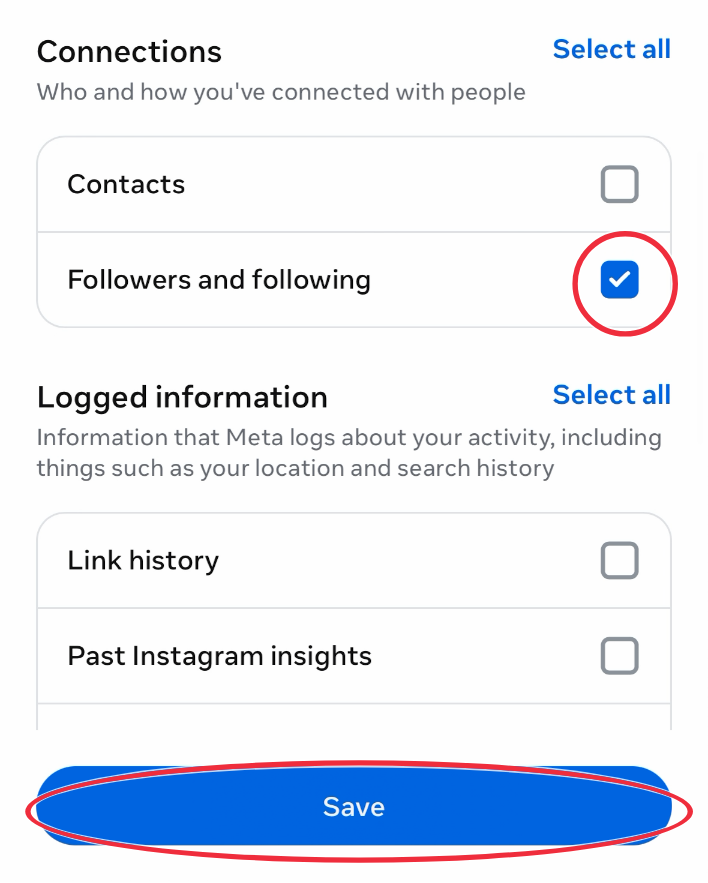
Tick only “Followers and following”. A full export includes every photo, message and story you ever posted and can be gigabytes. The followers export is a few hundred kilobytes.
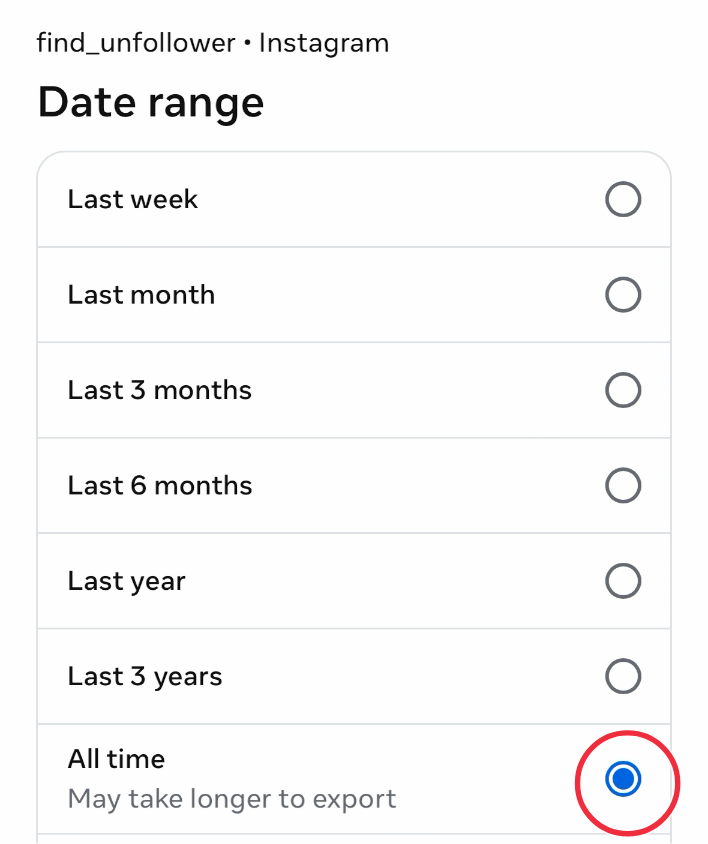
Date range: All time. The default is “Last year”, which silently leaves out everyone who followed you more than twelve months ago. It is the most common reason follower analysis looks wrong. There is a whole article on why.
Step 1: Profile → menu → Accounts Centre
Open your profile and tap the three lines in the top-right corner. Under Your account, the first entry is Accounts Centre. Inside it, choose Your information and permissions.
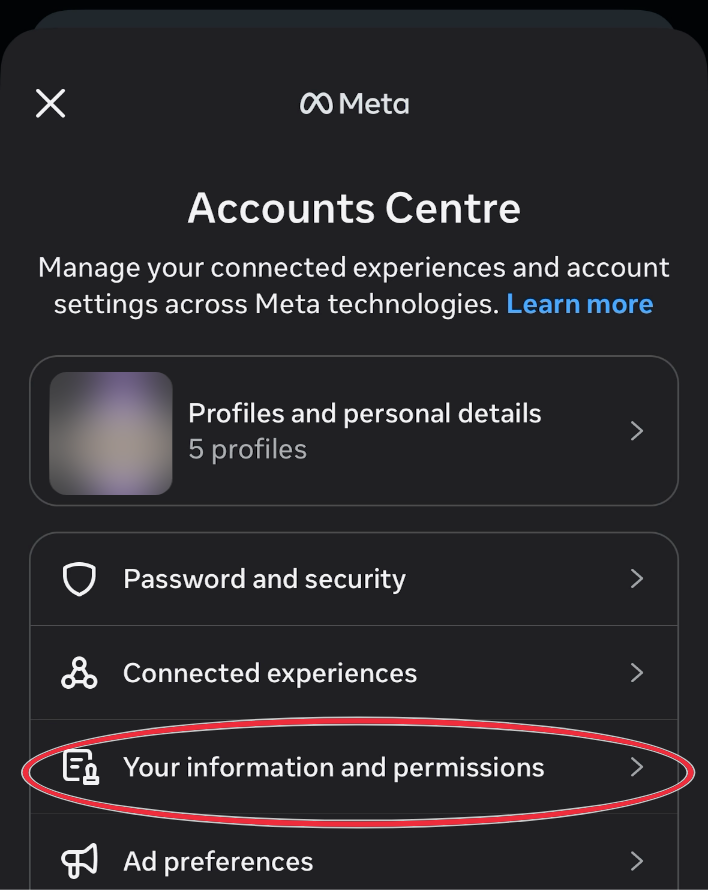
Accounts Centre → Your information and permissions.
Step 2: Export your information → Create export
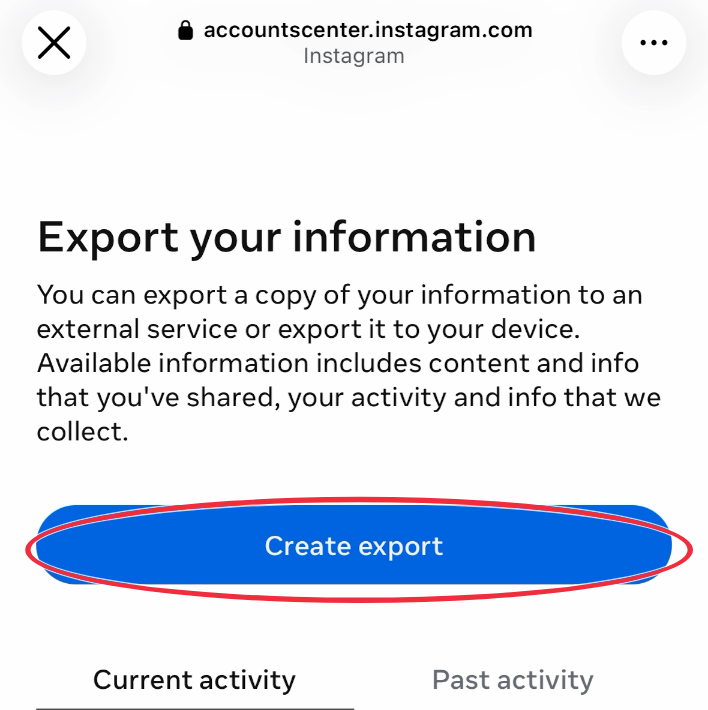
Tap Export your information (older versions call it “Download your information”), then the blue Create export button. If you have several profiles in Accounts Centre, pick the Instagram profile you want to check.
Step 3: Export to device
Choose Export to device. Google Drive and Dropbox also work, but a direct download is the easiest file to find again later.
Step 4: Customise information → only Followers and following
On the Confirm your export screen tap Customise information. Instagram pre-selects everything. Tap Clear all in each section, then tick only Followers and following under Connections, and Save.
Step 5: Date range → All time
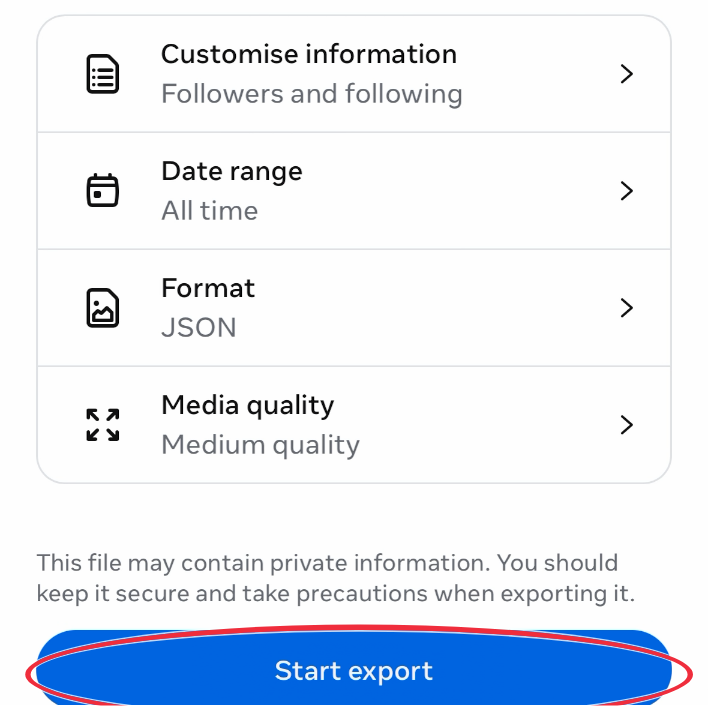
Back on the confirm screen, open Date range and choose All time. It says “may take longer to export”; for a followers-only export that difference is seconds.
Step 6: Format, then Start export
Format can stay on HTML or be switched to JSON; both contain the same lists and FindUnfollower reads either. Media quality is irrelevant for this export. Check the summary, then tap Start export. Instagram usually asks you to re-enter your password at this point.
Step 7: Wait, then download the ZIP
Instagram prepares the file in the background. For most accounts it takes a few minutes; very large accounts can take up to 48 hours. You get an in-app notification and an email with a download link, and the link stays valid for four days. Tap Download; on a phone the ZIP lands in your Files app (iPhone) or Downloads folder (Android).
What is inside the ZIP
A followers-only export contains one folder: connections/followers_and_following/. In it you will find followers_1.html (or followers_1.json), following.html, and small side files such as pending follow requests, recent follow requests, recently unfollowed profiles and close friends. Each entry is a username with the date the relationship was created. There are no photos, messages or personal details in this export.
You do not need to unzip it. Upload the ZIP as it is and your browser extracts the followers folder itself; only that folder is sent, and the uploaded file is deleted once it has been parsed. Full archives and the Google-Drive-wrapped version work too.
Common problems
“Your numbers look wrong.” Nine times out of ten the date range was left on Last year. Re-request with All time and upload the new file; it replaces the old one as your baseline.
The email never arrived. Check the Instagram app notifications, or go back to Export your information and look under Current activity: the file is downloadable from there.
The link expired. Links last four days. Create the export again.
You are asked for a password you do not have. Accounts created through Facebook may need to create a password first; Instagram offers a link on that screen.
What to do with the file
A single export answers who doesn't follow you back. A second export a week or a month later is what makes unfollower tracking possible, because unfollowers only exist as a difference between two lists. If you want the concepts first, start with non-followers vs unfollowers.


