How to clean up your Instagram following list (without an unfollow app)
Instagram has no bulk unfollow. Build the list from your export and Instagram's Following categories, decide account by account, and unfollow by hand over a few short sessions.
By FindUnfollower · · 6 min read
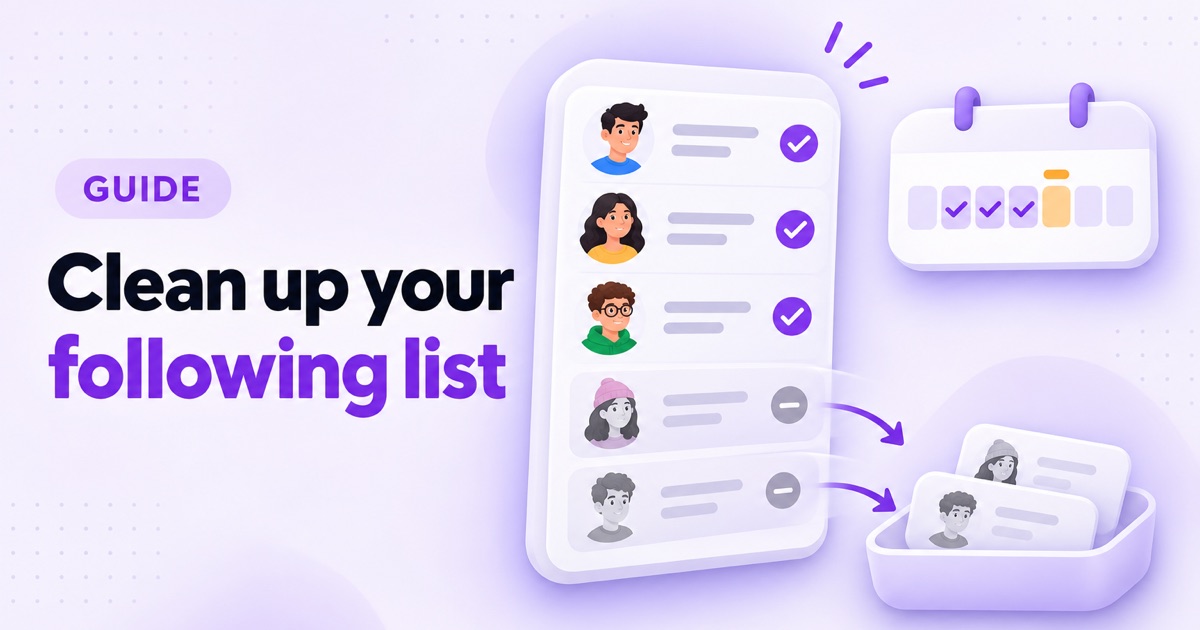
Instagram has no bulk unfollow. A real clean-up is a list you build first and then work through by hand, over several short sessions. Two sources build that list: your own data export, which lets you work out who doesn't follow you back, and Instagram's Following list, which groups accounts by how often you interact with them. Tools that unfollow for you work by signing in with your Instagram password, which puts the account at risk.
What a clean-up looks like
An illustrative example: you follow 1,400 accounts and want to get closer to 600. Your export shows that 520 of them don't follow you back. You keep the 40 of those you would genuinely miss, such as friends who rarely post, a few creators and local businesses. That leaves 480 accounts on a list you can work through in a week of short sessions. The other 320 cuts come from accounts that do follow you back but that you rarely interact with, which you decide on one by one.
The numbers will differ for you; the order is the useful part. Start with the accounts that are easiest to decide on, keep a record of where you stopped, and leave the borderline ones for last.
Step 1: Find who doesn't follow you back
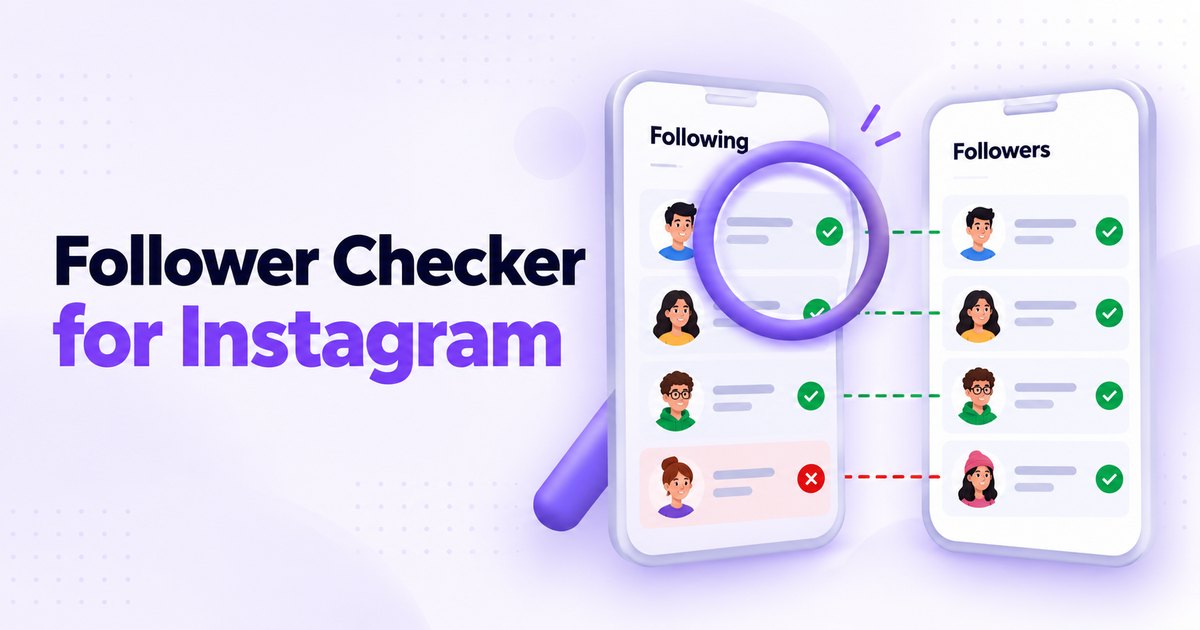
Instagram has no screen that lists accounts you follow that don't follow you back. You can work it out yourself by comparing your followers with your following, and the simplest source for both lists is Instagram's data export. Request Followers and following with the date range set to All time; the export guide shows each screen. The date range matters here. With the default Last year, every account you follow that followed you more than a year ago appears as a non-follower, so you would end up unfollowing people who follow you (why the date range must be All time).
Once you have the file, there are three ways to find non-followers, from checking profiles by hand to uploading the export to a tool.
Step 2: See who you rarely interact with
Open your profile and tap Following. Since 2020 Instagram has shown categories at the top of this list, including Least interacted with, and it lets you sort by the date you followed each account. The labels move between app versions. Least interacted with groups the accounts you have interacted with least, and sorting by earliest followed brings up the accounts you followed years ago and may have forgotten.
Step 3: Decide account by account
Work down your non-followers list first. For each account, open the profile and make one decision: keep or unfollow. Anyone you know personally, and any account whose posts you would miss, stays. The rest go on the unfollow list.
Then do a second, slower pass through Least interacted with. These accounts may follow you back, so unfollowing them is a choice about your feed, not about fairness. An account that is on both lists, not following you back and rarely interacted with, is the easiest decision of all.
Step 4: Unfollow by hand, in short sessions
Instagram's own steps are simple: open the profile, tap Following, then Unfollow. You can also tap Following next to a name inside your Following list.
Pace is where clean-ups go wrong. Instagram does not publish a number of unfollows per day; it limits how often accounts can do certain things without saying where the line is. When an account hits a limit, Instagram shows a message along the lines of "We limit how often you can do certain things on Instagram" and pauses the action. A few habits keep you clear of that:
- Spread the work over several days instead of one long sitting.
- If that message appears, stop for the day.
- Don't unfollow an account and follow it again later; it adds activity to your account and gains you nothing.
- Don't give your password to an app that offers to unfollow for you. It signs in as you, and Instagram's help center lists that as a reason accounts get flagged. Here is why unfollow apps are risky.
How many accounts can you unfollow per day?
Instagram does not say. Blog posts quote figures of one or two hundred a day, but these come from users' own experience, not from Instagram, and they vary by account. Treat the first limit message as your answer for that day.
After you unfollow
Instagram does not send a notification when you unfollow someone, though they can notice if they look at their followers. Unfollowing does not remove them from your followers: anyone you unfollow who follows you keeps following you unless they decide otherwise.
Removing followers instead
If the list you want to clean is your followers, the tools are different. You remove existing followers one at a time: open your Followers list, tap Remove next to the account, then confirm. Instagram says the person is not notified. Its help page describes this for private accounts.
The only bulk option is for accounts Instagram itself has flagged as possible spam, bots or irrelevant. On a public account, if any of your followers are flagged, a Flagged for review notice appears in your Followers list with a Remove all button. Follow requests from flagged accounts go to a Flagged folder with Delete all requests, and any you leave are declined automatically after 30 days. Instagram notes this feature may not be available to everyone yet.
Keep your place across sessions
A clean-up spread over a week needs a record of who you already checked. A spreadsheet of usernames works. So does FindUnfollower, which reads the same export and shows who doesn't follow you back. Each name opens that profile on Instagram, and opening it marks the row Viewed. A Not viewed filter shows what is left, and a whitelist keeps the accounts you decided to keep out of the list after later uploads. The free check shows your counts and three of your non-followers; the full list is part of Pro. FindUnfollower never unfollows anyone for you; every unfollow is your own tap in Instagram.
To start, request the export with Followers and following and All time today, and the list will be ready for your first session.