How to export your Instagram followers list
Instagram gives you a copy of your own data, including everyone who follows you and everyone you follow. Requesting it takes about two minutes. Instagram then emails you a ZIP file, usually within minutes. Upload that file to FindUnfollower to see who doesn't follow you back.
- Official Instagram feature
- No password shared with us
- Nobody is notified
- Works for private accounts
Four choices that make or break the export
Everything else in Instagram's export flow can stay on its default.
Only “Followers and following”
Untick everything else. The file stays tiny and Instagram prepares it in minutes instead of hours.
Date range: All time
The default “Last year” silently drops older followers and makes your results wrong.
Export to device
A direct download is easy to find again. Google Drive or Dropbox adds steps on a phone.
Your Instagram profile only
If Accounts Center lists Facebook or Threads too, tick just the Instagram account you want to check.
iPhone or Android, in the Instagram app
Screenshots from the current Instagram app. Where the older design uses different wording, it's noted under the step — both routes reach the same export.
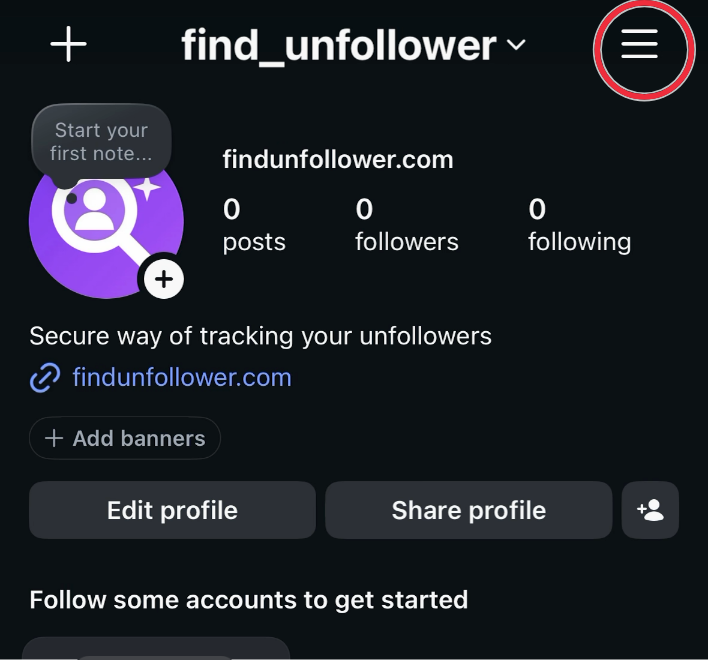 1
Open Instagram, go to your profile and tap the menu ☰
The three lines in the top-right corner open “Settings and activity”. Make sure you're signed in to the account you want to check.
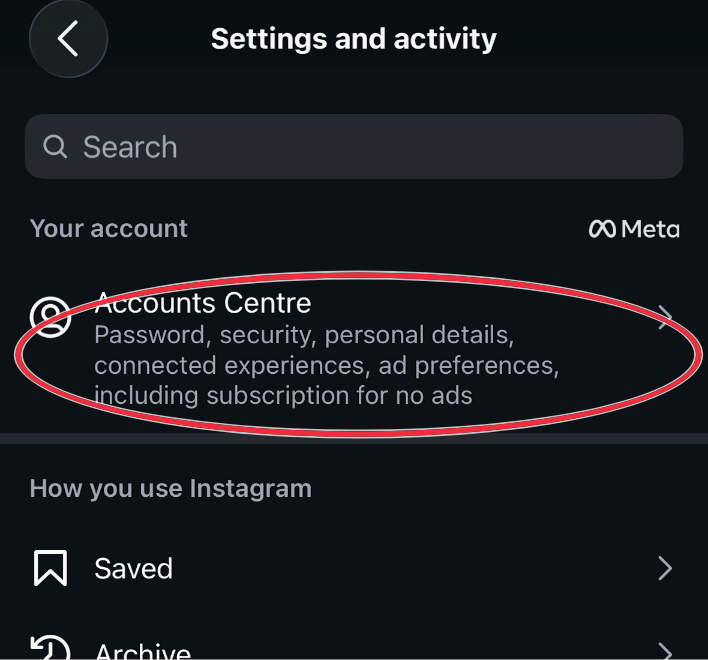 2
Tap “Accounts Center”
It's the first item under “Your account” at the top of Settings.
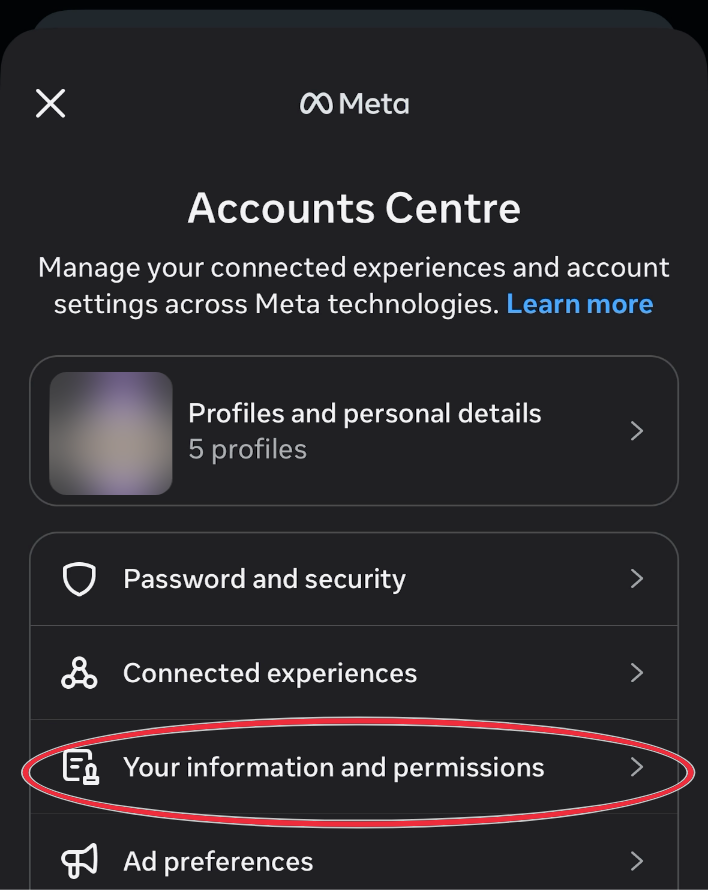 3
Tap “Your information and permissions”
On the Accounts Center screen, under the list of your profiles.
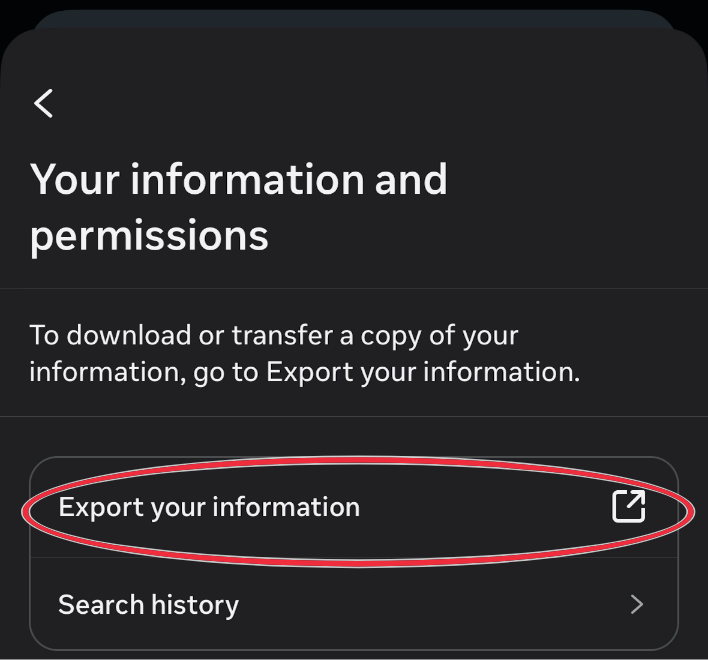 4
Tap “Export your information”
Instagram is rolling out a new design, so the wording differs from phone to phone. Both routes reach the same export.
Older design: this step is called “Download your information”.
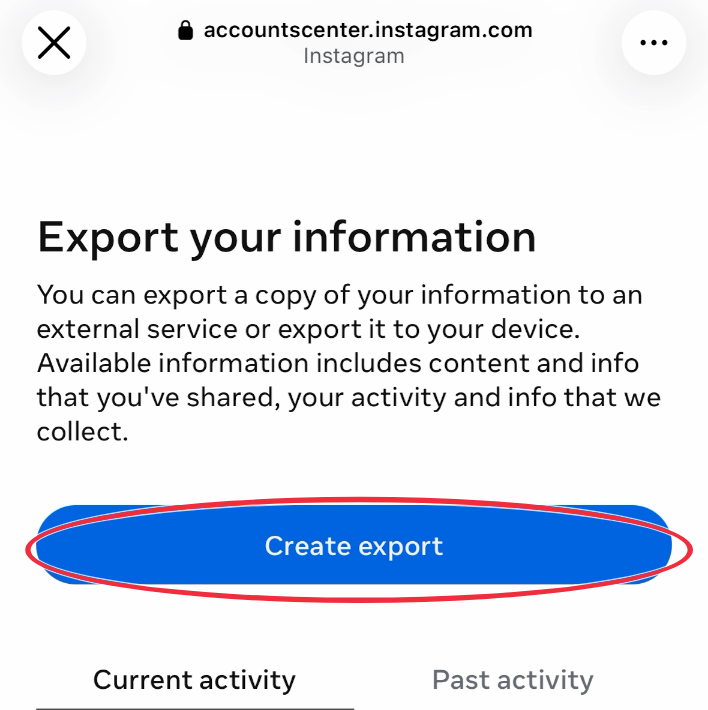 5
Tap “Create export”
The blue button at the bottom of the screen.
Older design: this step is called “Download or transfer information”.
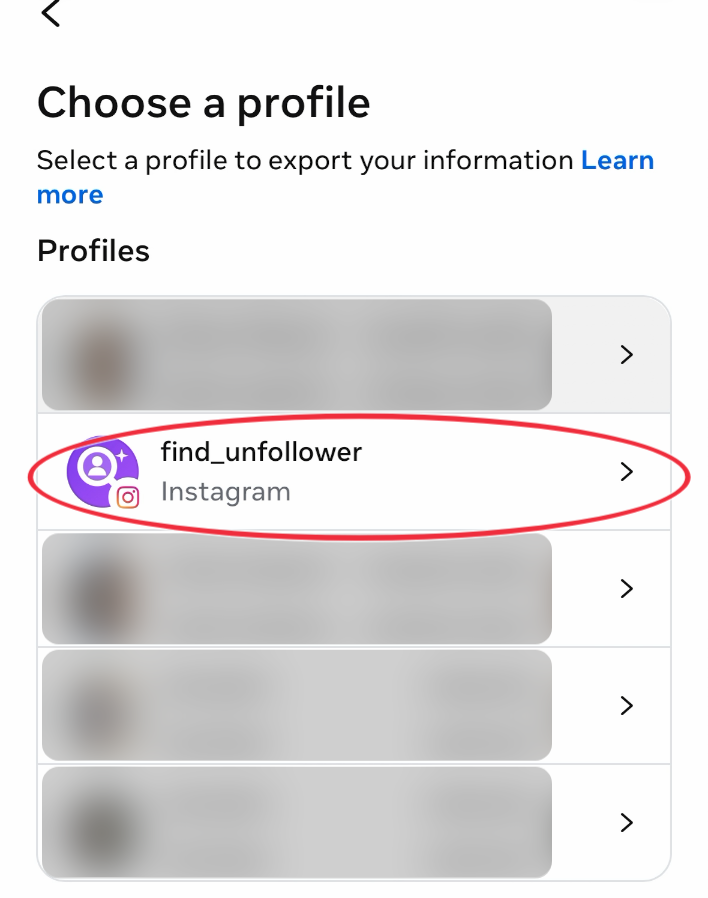 6
Choose your Instagram profile
If you have several profiles in Accounts Center (Facebook, Threads, a second Instagram), tick only the Instagram account you want to check. An export for the wrong profile contains no followers list.
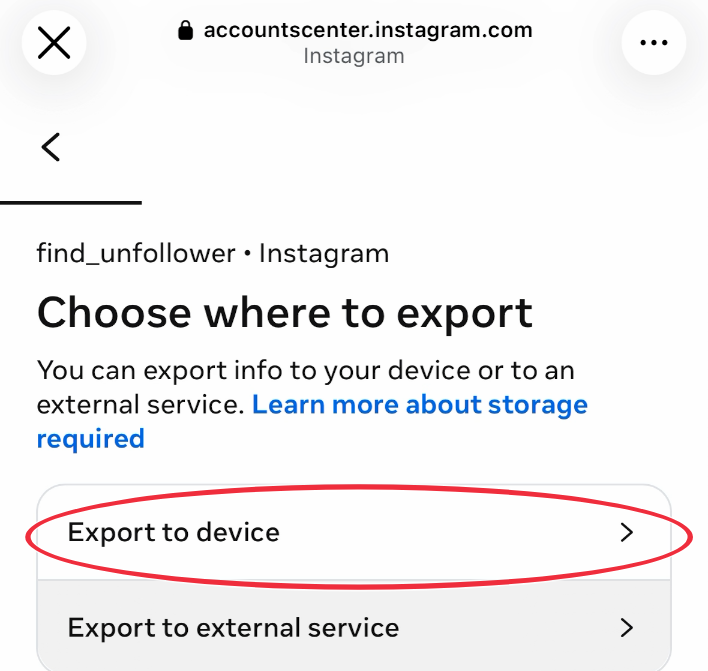 7
Choose “Export to device”
Not Google Drive or Dropbox — a direct download is the easiest to find again later.
Older design: this step is called “Download to device”.
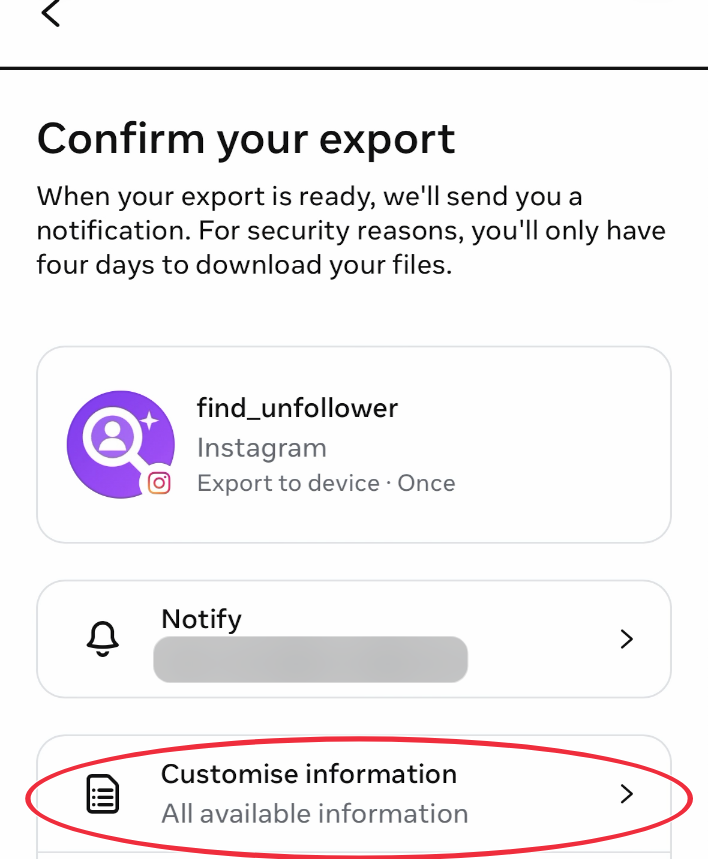 8
Tap “Customise information”
Instagram pre-selects everything, which can be gigabytes of photos and videos. On the next screen tap “Clear all” in each section so only what you need stays ticked.
Older design: this step is called “Some of your information”.
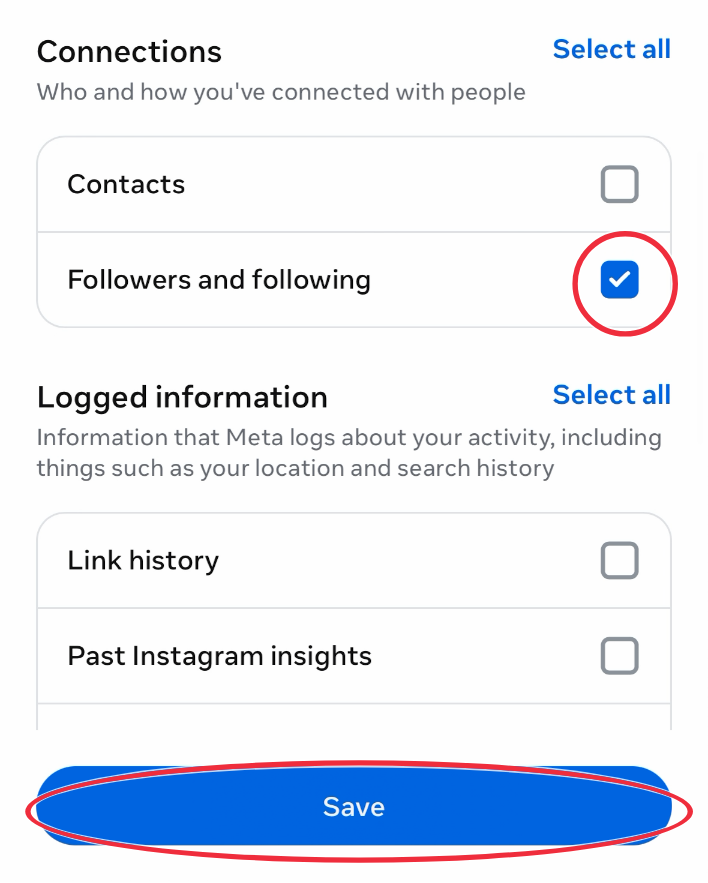 9
Tick only “Followers and following”, then Save
It's under “Connections”. Leave everything else unticked — the export stays a few megabytes and Instagram prepares it quickly.
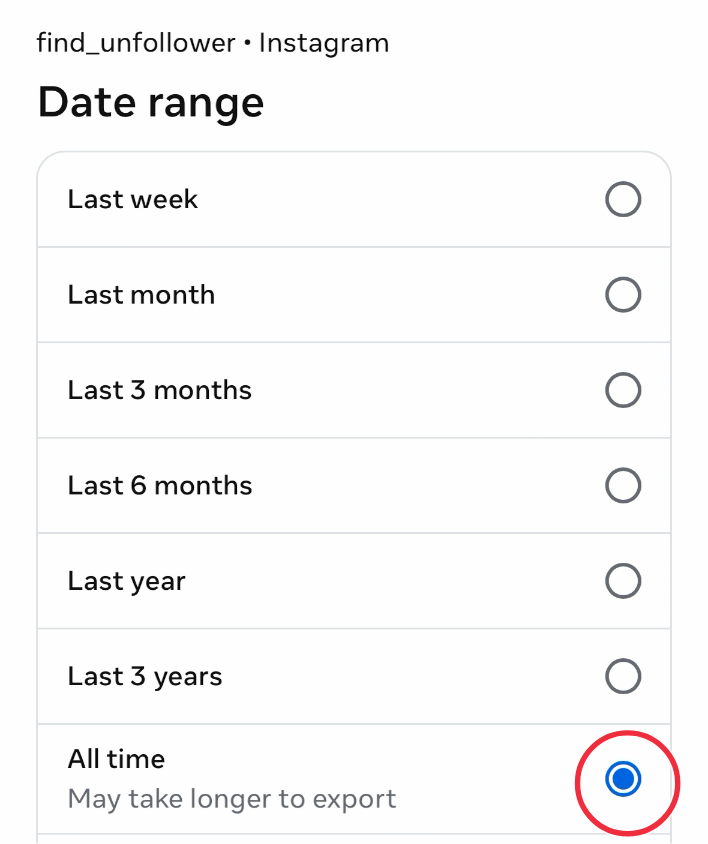 10
Date range: choose “All time”
This is the step most people miss. The default (“Last year”) leaves out everyone who followed you earlier, which makes your non-follower count wrong.
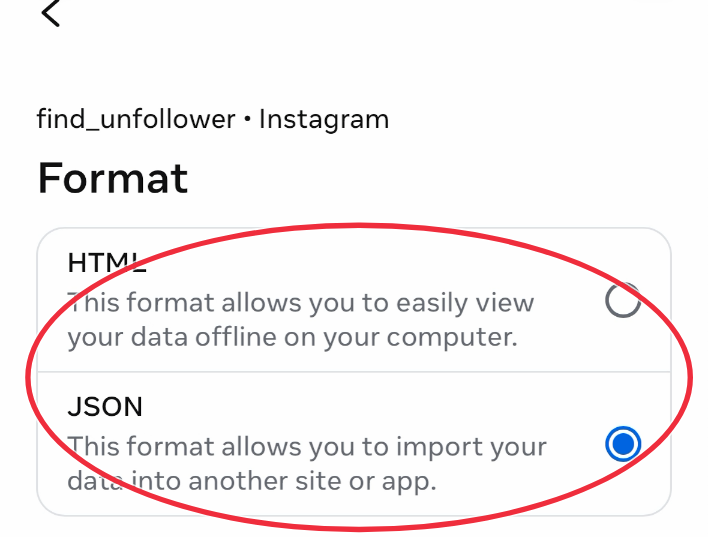 11
Format: HTML or JSON — both work
Leave the default or pick JSON; FindUnfollower reads either one.
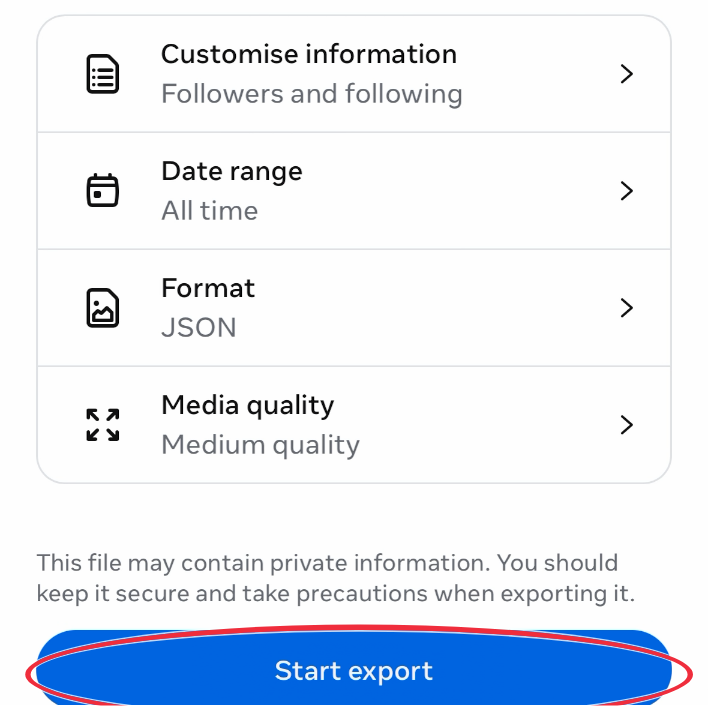 12
Check the summary and tap “Start export”
Followers and following ✓ · All time ✓ · Export to device ✓. That's it — Instagram now prepares the file.
Older design: this step is called “Create files”.
 13
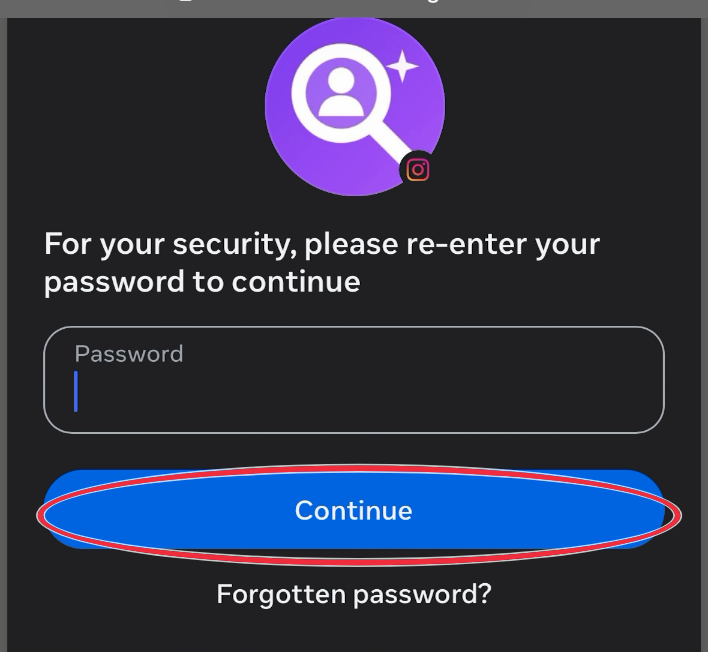
Re-enter your password if Instagram asks
Instagram sometimes confirms it's really you before starting. You're entering your password into Instagram, never into FindUnfollower.
Same export, from instagram.com
The menus sit in different places, the choices are identical.
- 1
Open instagram.com and sign in
Use the account you want to check.
- 2
Click “More” (☰) in the bottom-left, then “Settings”
The left sidebar has a “More” item at the bottom.
- 3
Click “Accounts Center”, then “Your information and permissions”
Accounts Center is the first item at the top of Settings.
- 4
Click “Export your information” (or “Download your information”)
Then “Create export” (or “Download or transfer information”), and choose your Instagram profile.
- 5
Choose “Export to device”, then “Customise information”
Clear everything Instagram pre-selected and tick only “Followers and following” under Connections.
- 6
Date range “All time”, any format, then “Start export”
Instagram emails you when the ZIP is ready. Download it to your computer and don't unzip it.
Requested on your phone but want to upload from a computer? The email Instagram sends works on any device: open it on the computer and download the ZIP there.
Instagram prepares the file, then you come back
- Step 1
Wait a few minutes
With only followers selected it's usually quick; occasionally Instagram takes up to 48 hours. You can close the app.
- Step 2
Download the ZIP
Instagram emails you and shows an in-app notification. Tap Download. Check Promotions or Spam if the email is slow to appear. Don't unzip it.
- Step 3
Upload it here
Open FindUnfollower, tap Choose file and pick the ZIP: Files → Downloads on iPhone, the Downloads folder on Android and computers.
Got the ZIP?
Your first follow check is free: full counts and the first non-followers, no card.
Common problems and the fix
“We couldn't find a followers folder in this archive”
The export didn't include “Followers and following”, was made for another profile in Accounts Center (Facebook or Threads), or Instagram split a large export into several ZIPs. Request it again with only Followers and following ticked and the right Instagram profile selected.
The file is huge (hundreds of MB or more)
You exported everything. It still works, but it's slow to download and upload. Next time choose “Customise information” and keep only Followers and following; the file is then a few megabytes.
I picked “Last year” instead of “All time”
Request the export again. With a limited date range, everyone who followed you earlier is missing, so the non-follower list cannot be trusted. FindUnfollower warns you when it detects this.
The download link no longer works
Instagram's download links expire after a few days. Request a fresh export; with only followers selected it is usually ready within minutes.
Questions about the export
Is requesting an export safe?
Yes. It is Instagram's own “Download your information” feature, built for exactly this: giving you a copy of your data. You do it signed in to Instagram as usual. FindUnfollower never asks for your Instagram password and never logs in to your account.
How long does Instagram take to prepare the file?
Usually a few minutes when you select only “Followers and following”; occasionally up to 48 hours. Instagram emails you and shows an in-app notification when it's ready. A full export with photos and videos takes much longer, which is why this guide asks you to untick everything else.
Where does the ZIP end up on my phone?
On iPhone, tap the download in Instagram or in the email and the file lands in the Files app under Downloads (or iCloud Drive → Downloads). On Android it goes to your Downloads folder. When you upload on FindUnfollower, tap “Choose file” and pick it from there. Don't unzip it first.
Will the export tell me who unfollowed me?
Not by itself. One export shows who doesn't follow you back today. Upload a second export later and FindUnfollower compares the two, which is how it finds exactly who unfollowed you in between.
Does requesting an export notify anyone?
No. Nobody is notified, nothing is posted, and your account isn't touched. It's a private copy of your own data.
Still have a question? Ask a real person
Ready to see who left?
Your first follow check is free. No password, no credit card, and your export is deleted right after we read it.
Takes about two minutes. Cancel any time.