How to see who unfollowed you on Instagram
Instagram never lists who left. The only honest way to know is to compare two snapshots of your followers, and Instagram's own data export gives you exactly that, without handing anyone your password.
By FindUnfollower · · 5 min read

Your follower count dropped by three overnight and Instagram will not tell you who. It never does: there is no unfollow notification, no history screen, nothing in the official app or its data export that records past unfollows. Any tool that shows you an unfollow has to have seen your followers list before and after. That fact shapes every honest answer to this question.
The short version
Download your followers export from Instagram today (date range: All time).
Upload it to FindUnfollower. This is your baseline; it shows who doesn't follow you back right now.
Download and upload a new export next week, next month, whenever you like.
Every name that was in the earlier followers list and is missing from the new one is an unfollower, listed with a reason where the data allows.
Nothing logs in to your account at any point, so nothing can trigger Instagram's automation warnings.
Why a first check can never show unfollowers
An unfollow is a change between two moments. One export is one moment. That is why your first upload shows non-followers (people you follow who do not follow you back) and an empty Unfollowers card. It is also why any app that shows “who unfollowed you” within seconds of installing it is either guessing from a heuristic or already had your list from a login you gave it earlier. Instagram simply does not expose the history to anyone. The difference between these two lists is spelled out in non-followers vs unfollowers.
Step 1: Request your data from Instagram
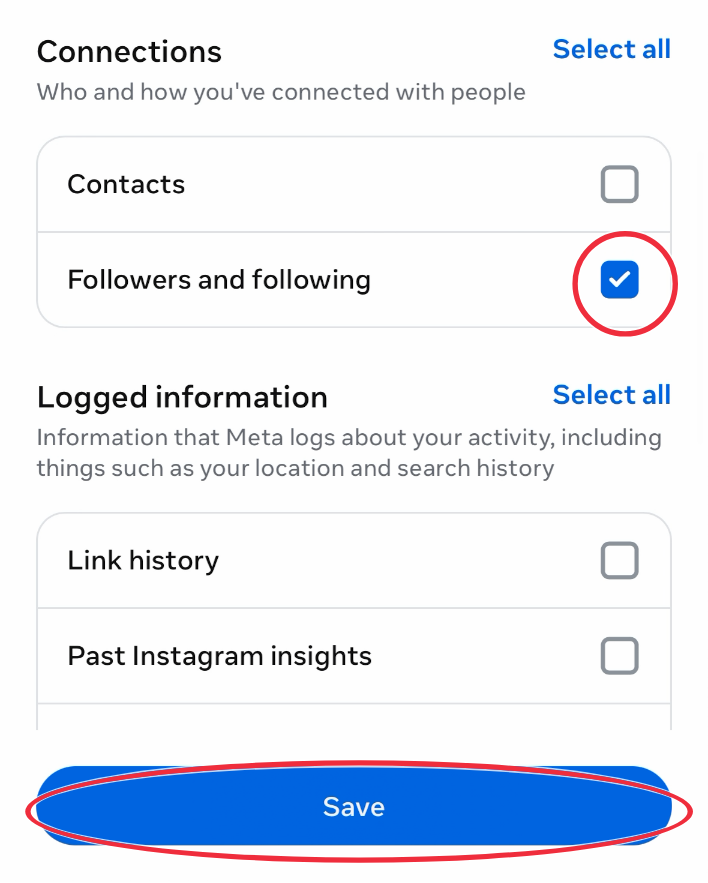
In the Instagram app: profile → menu → Accounts Centre → Your information and permissions → Export your information → Create export. Choose your profile, Export to device, then under Customise information clear everything and tick only Followers and following.
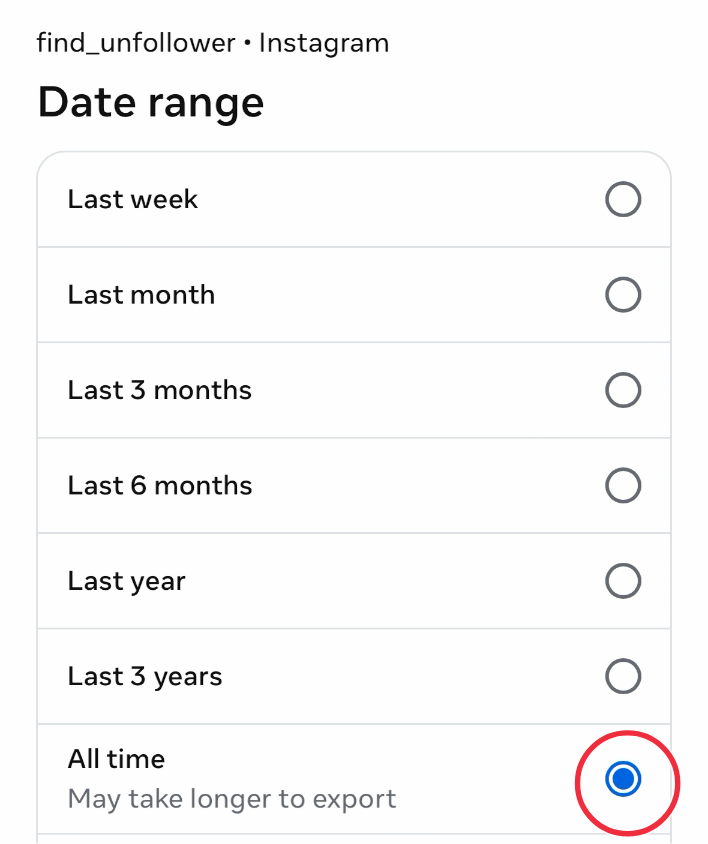
Set Date range to All time. This is the one setting people miss, and it matters more for unfollower tracking than for anything else: with the default “Last year”, followers who joined earlier are missing from the file, so when they appear in a later, correct export they look like new followers, and vice versa. FindUnfollower detects a truncated export and warns you, but the fix is always to re-request with All time.
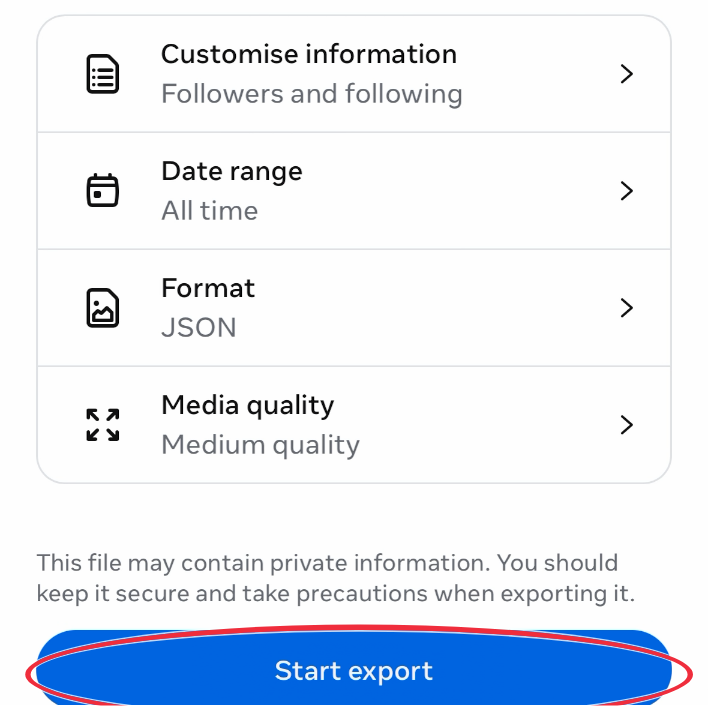
Format can be HTML or JSON. Tap Start export, wait for the email (minutes for most accounts, up to 48 hours for very large ones) and download the ZIP. Every screen is shown in how to download your Instagram data.
Step 2: Upload it and read your baseline
Drop the ZIP on the upload page. You do not need to unzip it; the browser picks out the followers folder and sends only that, usually under a megabyte. Your first results show non-followers, fans (they follow you, you don't follow back), mutuals and pending requests. The free plan unlocks the first three non-followers; the paid plans unlock everything, including the comparison below.
Step 3: Upload again and read the difference
When you upload a second export, FindUnfollower compares the two followers lists and gives you:
Unfollowers: in the earlier list, missing from the new one.
Gained: in the new list, missing from the earlier one.
A reason for each lost follower: they unfollowed you; you unfollowed them (a mutual follow that broke from your side, detected from your following list and Instagram's “recently unfollowed” file); or account deleted (Instagram exports removed accounts under a placeholder name). A block looks identical to an unfollow in the export, so it is reported as unfollowed.
Each upload is kept as an audit, so you can look back at any date and see the running list of unfollowers caught so far.
How often should you upload?
As often as you want the answer. Weekly gives you a week's resolution: you will know who left during that week, not on which day. Monthly is enough for most people. The comparison is only as fine-grained as your schedule; if someone unfollows and re-follows between two of your uploads, no export-based method can see it.
If there are a few accounts you care about specifically, the Spy Tool on paid plans watches them and tells you the moment a new upload shows one of them has stopped following, so you do not have to scan the whole list.
What this method cannot do
Show anything from before your first upload. No tool can, honestly.
Tell you why a person unfollowed. It records that they did.
Distinguish a block from an unfollow.
Work on someone else's account. The export is only available to the account owner.
Why not use an app that logs in and checks for you?
Because logging in through a third-party app is exactly what Instagram's terms prohibit and what its systems flag; the usual result is a security warning, a forced password reset or a temporary block, and in the worst case a lost account. Are Instagram unfollower apps safe? explains what to look for. The export method gives you the same answer from the same source data, without ever handing over a credential.
Ready to set your baseline? See how the tracker works, or start your first free check.


