Instagram security warning after using an unfollower app? Do this
The suspicious login is most likely the app itself, and it still has your password. Which button to tap, the order to clean up in, the restricted and locked-out cases, and a way to check non-followers without logging in anywhere.
By FindUnfollower · · 7 min read
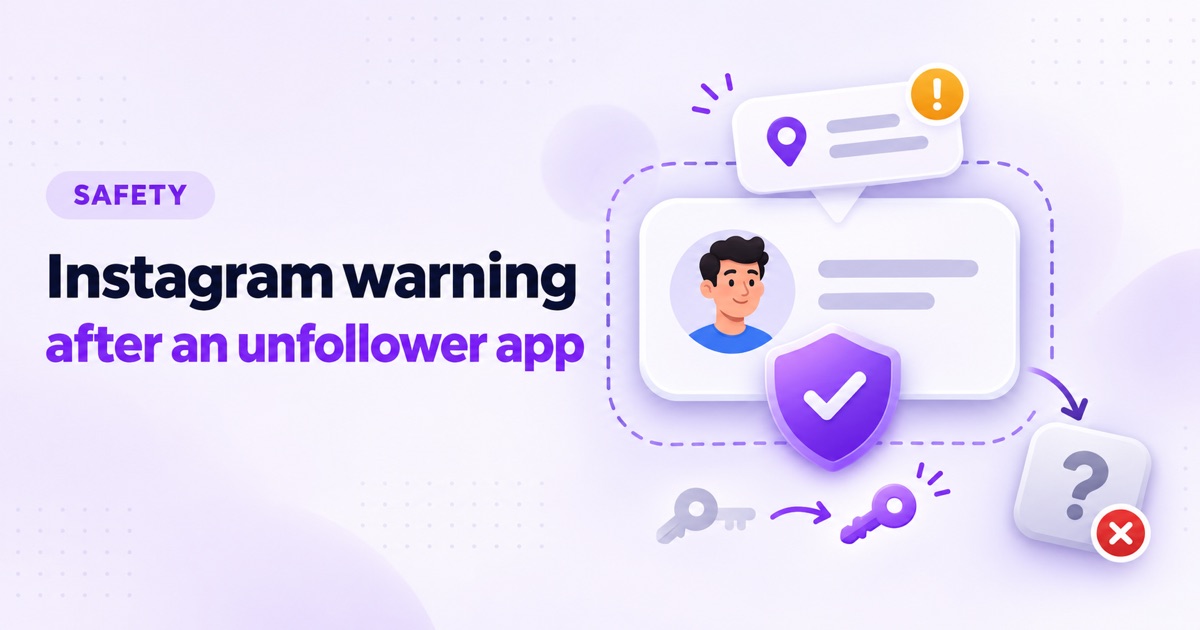
If Instagram showed a suspicious login alert, asked you to change your password, or said your account is at risk soon after you gave an unfollower app your login, the app is the most likely cause. It probably signed in from a device or place Instagram did not recognize, and the company behind it still holds your password. That is not the same as an unknown hacker, but you should take the access back now: tap This wasn't me, change your password, and work through the checklist below.
Why Instagram flagged it
An app that asks for your username and password uses them to log in as you, often from a device or location Instagram has never seen for your account, and then reads your lists automatically. To Instagram that looks like an unfamiliar sign-in followed by automated access.
Instagram's help center names this directly. Its page on accounts restricted for data scraping lists "you may have provided your username and password to a third-party app or website" as one reason its systems flag an account. Its Terms of Use forbid accessing or collecting information in unauthorized ways. The "account at risk" page, which explains why Instagram asks you to change your password, adds that this can happen when your account is synced with an unauthorized third-party app.
Depending on how the app behaved, you may see a suspicious login alert, a forced password change, an email about a login attempt, or a notice that the account has been restricted.
"This was me" or "This wasn't me"?
When Instagram asks whether a login was you, tap This wasn't me, even if you think it was the app. This was me confirms the login as yours, and the point now is to end the app's access, not to approve it. This wasn't me takes you into Instagram's steps to reset your password and secure the account, which is exactly what you want to do anyway.
If the alert came by email, check that it is genuine before using its buttons (how to tell is further down).
Clean up in this order
- Change your Instagram password. Instagram logs you out of every other device when you do, which should include the app. Use a password you have never used anywhere else.
- Secure your email if it shared that password. If the password you gave the app also protects the email inbox on your Instagram account, change it there next. Login links and password resets go to that inbox.
- Check where you're logged in. In Accounts Center go to Password and security → Where you're logged in, open your account, and log out every device you do not recognize. On older layouts, look for Login Activity in Settings. An app that signed in with your password is likely to appear here as a login.
- Remove connected apps. On instagram.com, open Settings and, under Your app and media, go to Website permissions → Apps and Websites → Active. Remove anything you did not knowingly connect. This list covers apps you authorized through Instagram's own screen. An app that only asked for your password may not be listed, which is why step 3 matters.
- Turn on two-factor authentication in Accounts Center under Password and security. Instagram then asks for a code when someone logs in from a device it does not recognize, so a password alone is no longer enough.
- Check your contact details. Confirm that the email address and phone number on the account are yours, and remove any linked accounts in Accounts Center that you do not recognize. These are what you would need to recover the account later.
- Change the same password everywhere else. If you used it on other sites, change it there too. Instagram's help center warns that a password reused elsewhere is one way accounts become at risk.
- Cancel the app's subscription, then delete it. Many of these apps bill through the App Store or Google Play. Cancel from your store account's subscriptions screen (Apple's steps), so the charge stops, then delete the app.
Steps 1, 3, 4 and 5 come straight from Instagram's own advice for suspicious activity. The order matters: the new password cuts off the app first, and the inbox comes next because that is where a password reset would land.
If Instagram restricted, disabled or locked the account
Will Instagram ban me for using an unfollower app? Nobody outside Instagram can say. Its help center describes two outcomes: an account may be restricted and flagged for further review for data scraping, and accounts that break its rules may be disabled.
Restricted, but you can still log in. Follow the on-screen steps Instagram shows, then do the checklist above. Stop using the app; logging in to it again would repeat the pattern Instagram flagged.
Disabled. Instagram shows a message saying so when you try to log in. If you think it was a mistake, Instagram's page on disabled accounts says you may be able to ask for a review by logging in and following the on-screen instructions. Forgot password? does not help here.
Locked out, with no disabled message. Use Instagram's hacked account steps: on the login screen tap Forgot password? to get a login link, request a security code or support if that fails, and verify your identity if asked. For accounts with photos of you, that can mean a short video selfie, which Instagram says is never shown on Instagram and is deleted within 30 days. These steps are on Instagram's own pages; you do not need a third-party "recovery service" to start them.
Is the warning email real?
Not every email about a login attempt is from Instagram. Instagram's page on recent emails lists the addresses its security emails come from: @mail.instagram.com, @support.instagram.com, @facebookmail.com, @support.facebook.com and @global.metamail.com. A sender address can be faked, though, so check inside Instagram instead: open your account settings (Accounts Center, or Meta Account on newer versions), go to the login and security section and open Recent emails. Security emails from the last 14 days are listed there; if the email you got is not, treat it as phishing. Instagram also says it never contacts you about account security through Direct Messages.
There is one case where you should use the email's button. If a genuine email from security@mail.instagram.com says your email address was changed and you did not change it, Instagram says you may be able to undo the change by selecting Secure my account in that email.
What removing the app does not undo
Changing your password and removing access stop the app from reading your account from now on. They do not delete what it already collected. Instagram's help center says a removed app "may have stored information from when you were using it". That is typically your follower and following lists and whatever else the app read while logged in. If the app has a privacy policy with a deletion contact, you can ask it to delete your data. Assume anything it read could still be held.
Checking non-followers without handing over a password
The list these apps promise is available from Instagram itself. Under Accounts Center → Your information and permissions → Export your information, you can request a copy of your followers and following lists. Instagram may ask you to confirm it is you on its own screen, then prepares the file itself. No outside company signs in to your account, so there is no outside login for Instagram to flag. The export guide walks through it; pick Followers and following and All time.
Comparing the two lists by hand is slow for a large account. FindUnfollower reads that export and shows who doesn't follow you back. It never asks for your Instagram password and never does anything on your account. Before you try any other tool, how to tell a risky app before you install it lists the red flags.